

Setting a workspace up is one pass through six steps. You do it once per community, and everything chosen here can be changed later in Settings.
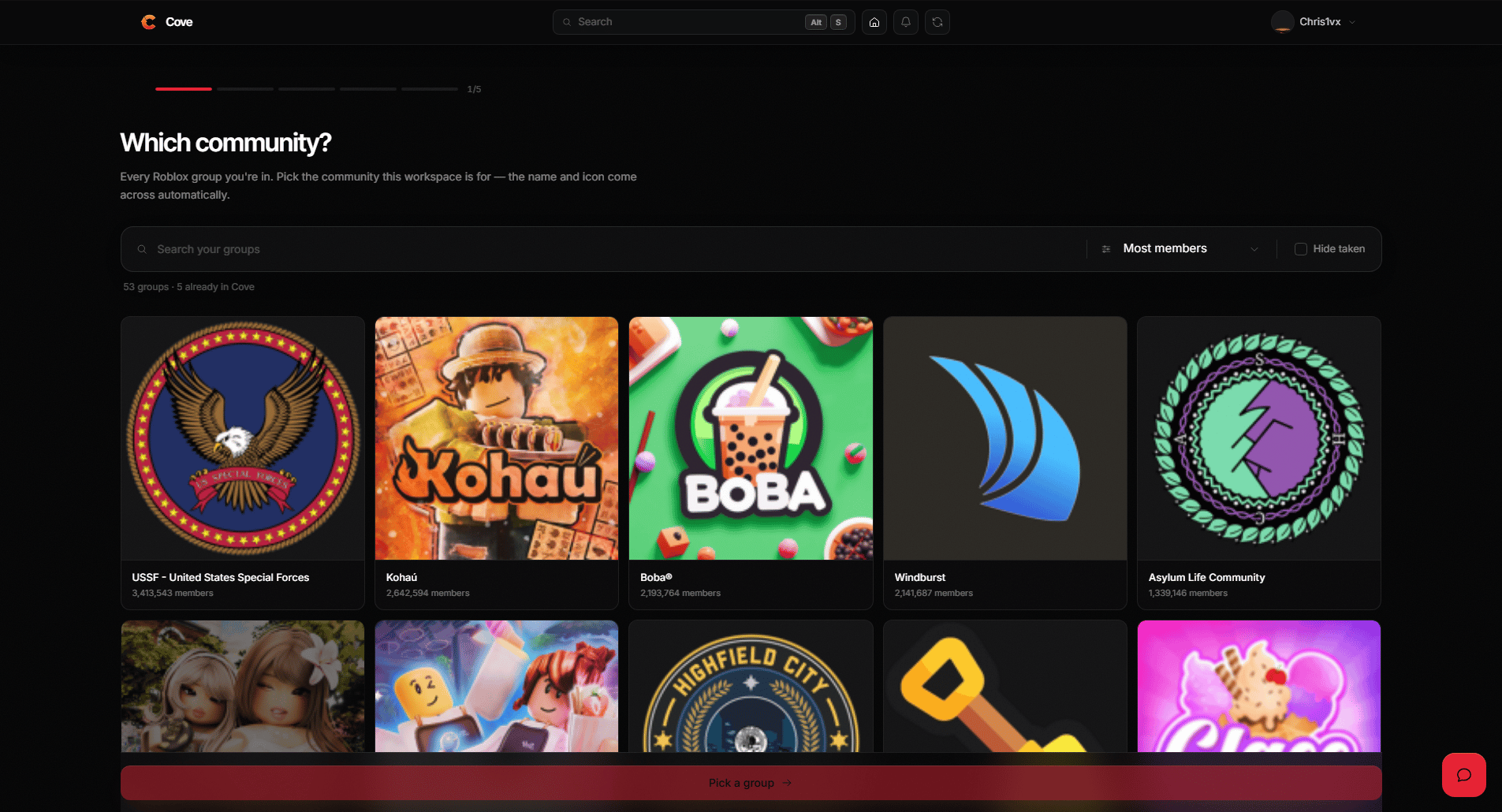
Picking the Roblox group a new workspace is for.
Before you start
Steps
1
Sign in with Roblox
Go to coveapp.cc/join. Cove uses Roblox to prove
who you are, so there is no password to make or forget.
2
Link your Discord account
Cove leans on Discord as heavily as it does Roblox, so this is required
rather than optional — without it, most of the product has nothing to act
on.
3
Coming from Hyra?
The first step offers to read your existing workspace and rebuild it here,
so you don’t set everything up twice. Skip it to start fresh; you can
migrate later either way.
4
Pick your Roblox group
Its name and icon become the workspace’s, so it looks like your community
without you filling in a form. A group belongs to one workspace.
5
Connect your Discord server
The server Cove will work in. Like the group, a server belongs to one
workspace.
6
Choose which ranks to track
Anybody holding a tracked rank joins the workspace automatically the first
time they sign in to Cove. Usually your staff ranks rather than every
member.
7
Pick a plan
Starter is free. Groups under 1,000 members get 10% off a paid plan
automatically, and it stacks with paying yearly.
8
Invite the Cove bot
The workspace needs the bot in your server to do anything at all. If it
isn’t there, the workspace says so and gives you the invite.
What to do next
Turn on verification
Decide what a verified member gets in your server.
Add role binds
Map each Roblox rank to the Discord roles it earns.
Set up departments
Decide who can do what before your team arrives.
Track in-game activity
Install the loader script and set quotas per rank.
If something isn’t working
The workspace says the bot is missing
The workspace says the bot is missing
The bot has to be in the Discord server you connected. Use the invite the
workspace shows you — it already points at the right server.
Discord stats show zero on a new workspace
Discord stats show zero on a new workspace
Give it a few minutes. The bot notices a newly connected server on its next
pass, and the dashboard picks the numbers up from there.
My group or server isn't in the list
My group or server isn't in the list
Both have to belong to you, and neither can already be connected to another
workspace. If a group looks wrongly claimed, tell us in Discord.
Roles aren't being handed out
Roles aren't being handed out
Cove cannot manage the server owner, or anybody whose highest role sits
above its own. Move the Cove role above the roles it needs to give.